
Start with the WebDAV endpoint
You need Vunio from the public TestFlight beta, the server's WebDAV address, and an account that can list folders and read videos. Vunio requires macOS 26 or iOS 26 or later. Enable WebDAV on the NAS or obtain its endpoint from your storage service.
Use the WebDAV endpoint rather than a web dashboard, a sign-in page, or a public sharing page. Being able to open a folder in a browser does not mean its URL is a WebDAV source. The server needs to support WebDAV folder listing and provide access to the media files.
Example only: for https://media.example.com:8443/dav/videos/, the host is media.example.com, the port is 8443, and the path is dav/videos. Replace this illustrative address with the endpoint supplied by your server.
Configure the WebDAV connection
Open Connect Server
On iPhone, return to Vunio's home list and tap Connect Server under Network. On Mac, click the server icon at the bottom left of the sidebar, labeled Connect Server.
Choose the protocol
Set Protocol to WebDAV (HTTPS) for an endpoint beginning with
https://, or WebDAV for one beginning withhttp://. The protocol and the endpoint must agree.Vunio permits account credentials over plain HTTP only for local addresses it recognizes. For an authenticated server on the public internet, use WebDAV (HTTPS). A custom public hostname pointing into your home network is not treated as a local address just because you are at home.
Separate host, port, and path
Enter only the hostname or IP address in Host. Leave Port (default 443) blank for standard HTTPS, or Port (default 80) blank for standard HTTP. Enter the actual port if the endpoint uses a different one.
Enter the endpoint's folder path in Path (optional). Although the field is optional, your particular server may require a path such as
dav/videosor a longer provider-specific endpoint. Leaving it blank asks to browse the server root.Sign in and connect
Enter User name and Password under Account. Vunio's saved WebDAV connection uses a username and password; it does not open a provider's browser sign-in flow. If the provider offers a separate WebDAV account or app password, use those credentials as instructed by the provider.
Choose Remember password if you want the password kept in the keychain. Otherwise it stays in memory for this run and is asked for again next launch. Add a Name (optional), then choose Connect.
Enter the account in its own fields. Do not put a username and password into the host, path, or URL.
Browse the video folders
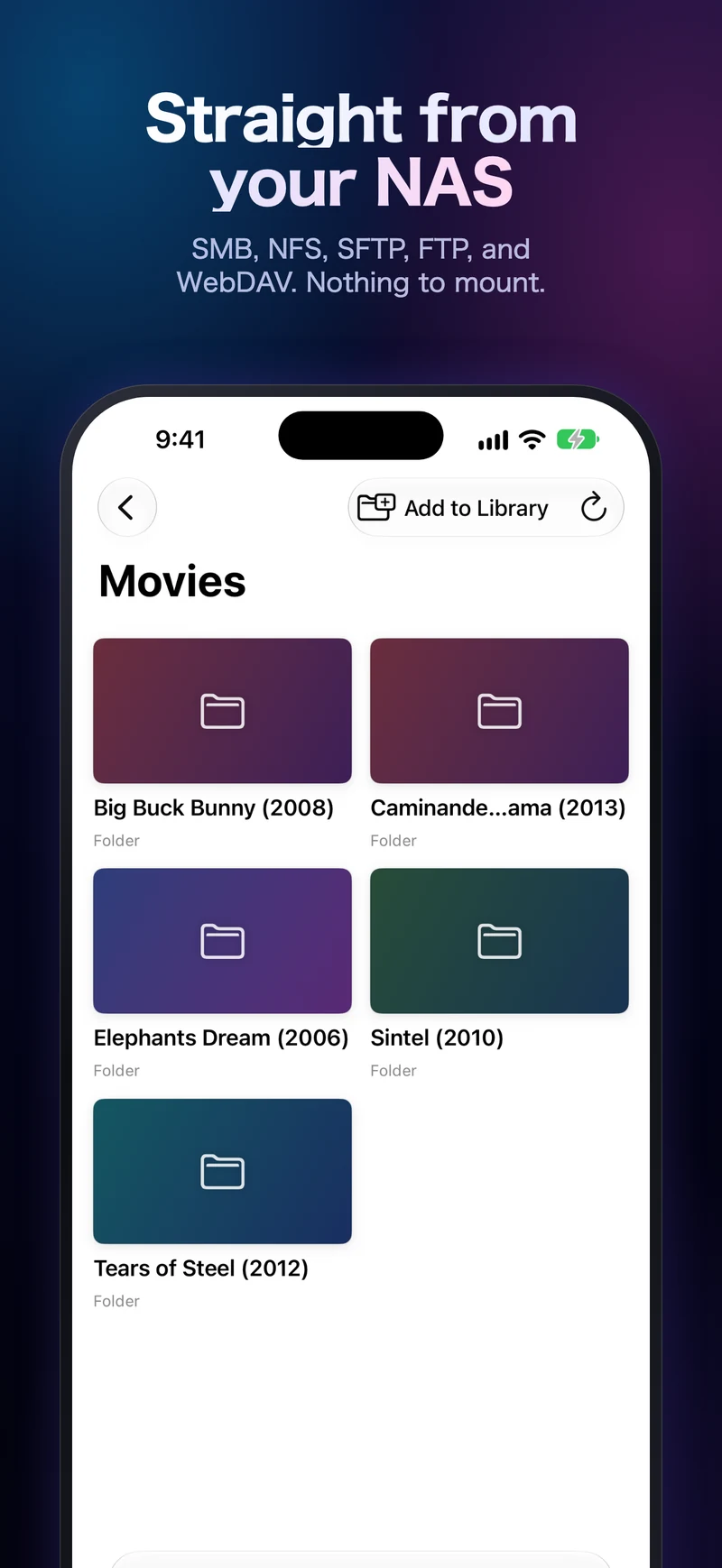
The saved connection appears under Network. Open it, open the folder containing your videos, and select a media file. On iPhone, tap the folder or video. On Mac, open the item from the grid.
The toolbar's Add to Library action can scan a folder into Media Library when you want it as a library source. You can also browse and play directly. The connection still needs a reachable server and permission to read the files.
If the WebDAV source does not work
The server has nothing at this address
Check Path (optional). A valid hostname with the wrong folder path can reach the server but find nothing there. Copy the exact WebDAV endpoint from the provider's settings, keeping any account-specific path segments and capitalization.
The server refused the connection
Check that the account has WebDAV access and permission to list the folder. Re-enter its credentials with Enter Account when offered, or use Edit Server. A successful browser login does not necessarily validate the username and password expected by WebDAV.
The server did not answer in time
Check the host, selected protocol, port, and whether the server is reachable from this device. If you use HTTPS, check that the endpoint works with a valid certificate for its hostname. For a local NAS, check local network permission on iPhone. Use Try Again once the connection details are corrected.
This location cannot be browsed
Check that the address is a WebDAV endpoint and that the protocol matches. For an authenticated public server, confirm you selected WebDAV (HTTPS); Vunio does not send saved account credentials to public plain-HTTP endpoints.
Folders load, but a video will not play
Folder listing and reading a video are separate permissions and requests. Try a second file in the same folder. If a local copy plays but the server copy fails, check file access and the server connection. If seeking fails, check whether the server supports partial file reads. Share the protocol, error message, and file's container and codecs with support, without posting passwords or private links.
What if you have a direct video URL?
Use Open Location for a single media URL when you do not need a saved server or directory browser. The Connect Server form includes an Open Location button; on Mac, it is also available as File → Open Location…, or ⌘L.
Paste the media URL, rather than a WebDAV folder or a browser sharing page. For a private HTTPS link, Open Location offers Bearer token or Basic username and Basic password fields. Use either Bearer or Basic authentication, and keep credentials out of the URL. These one-off credentials stay in memory; they are not a saved WebDAV account.