
What you need before you connect
- Vunio installed on your iPhone through the public TestFlight beta.
- An NAS or computer with SMB file sharing enabled, and a shared folder containing videos.
- The server's hostname or IP address and an account allowed to read that folder. A server's web dashboard address is not necessarily its SMB address.
- A network connection from the iPhone to the server. For a home NAS, begin with both devices on the same local network.
Vunio requires iOS 26 or later.
If iOS asks Vunio for local network access, allow it so the app can find and reach nearby servers. If discovery shows no server, you can still enter its address yourself.
Connect the SMB share in Vunio
Open Connect Server
From Vunio's home screen, find Network and tap Connect Server. If you are inside Recently Played, Media Library, or a server folder, return to the home list first.
Choose SMB and enter the host
Set Protocol to SMB. Under Address, enter the server's hostname or IP address in Host. Put only the host here, such as
nas.local; keep the share and port in their own fields. Picking an entry under Nearby fills in its address for you.Check the port and share
Port (default 445) can stay blank when your NAS uses the standard SMB port. Enter a different port only if the server is configured to use it.
The Share name field can offer a list after the server answers. Select the shared folder you want. If no list appears, type the exact name configured on the NAS, or leave Share name (optional) blank and browse the shares after connecting. A share name is something like
Movies, not the NAS's full disk path.Enter the account and connect
Fill in User name and Password under Account. Use Domain (optional) only when your server requires one. A NAS that permits guest access may accept empty account fields; a private share generally needs an account with read access.
With Remember password on, Vunio stores the password in the keychain. With it off, the password stays in memory for the current run and is requested again next launch. Give the connection a Name (optional) if you want a recognizable label, then tap Connect.
Example only: Host nas.local, Protocol SMB, default port 445, Share name Movies. Replace these with your own server's settings and enter credentials in the account fields.
Browse folders and play a video
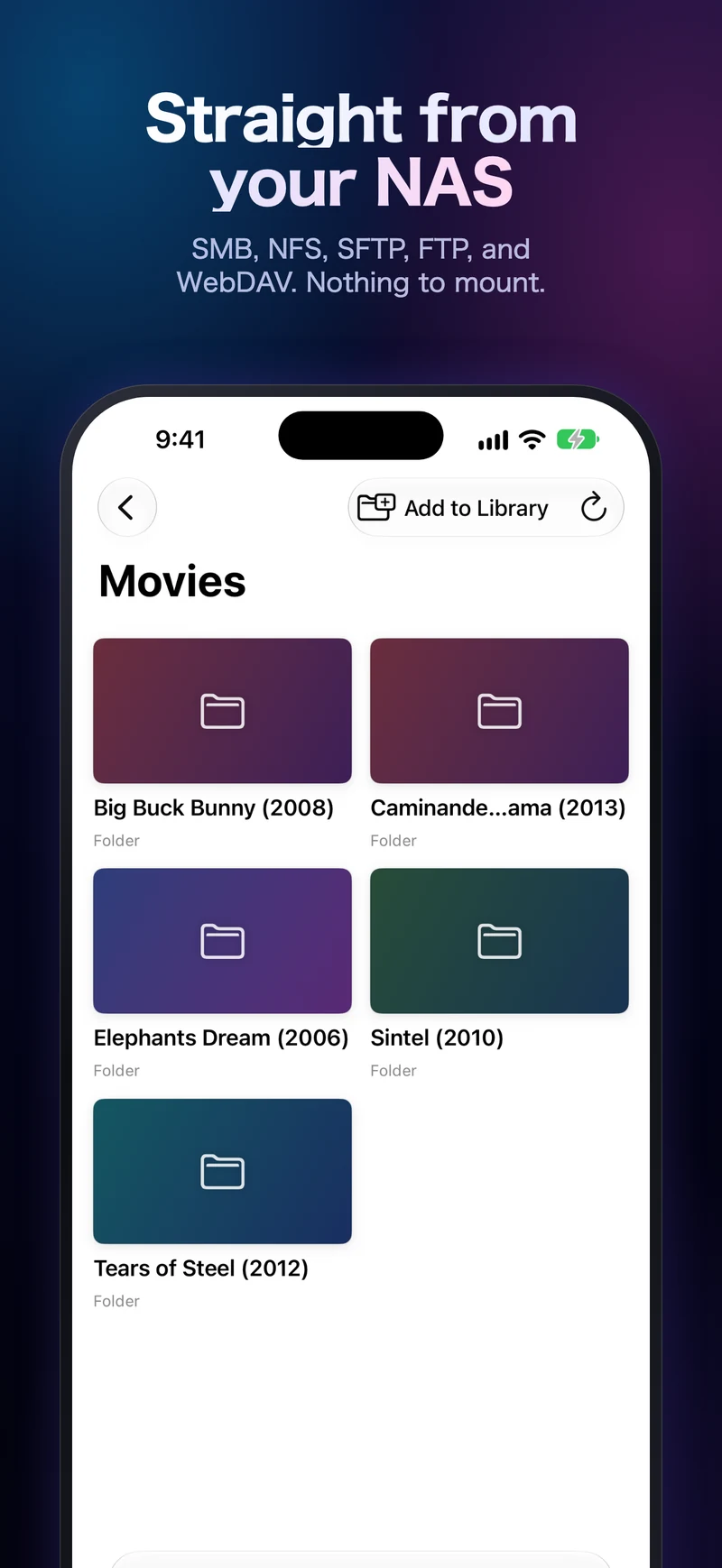
The saved server appears under Network. Open it, choose a share if you connected at the server root, and tap folders until you reach the video. Tap a media file to start playback.
You can browse and play without first adding the folder to Media Library. The Add to Library action is available if you want Vunio to scan that folder as a library source. A saved server or library source still needs access to the NAS when you open its videos.
If the NAS does not connect
No server appears under Nearby
Enter the host manually. Discovery and a direct connection are separate: a server that does not announce itself may still work by address. Check local network permission and use the NAS's current address.
The server did not answer in time
Check that the NAS is awake, SMB sharing is enabled, and your iPhone can reach its network. Guest Wi-Fi or network isolation can prevent devices on the same router from reaching one another. Check the host and port, then use Try Again on the error screen.
The server refused the connection
Check the exact share name and the account's permission to read it. Use Enter Account when offered, or Edit Server to correct the address, share, or login. On the home list, a server's long-press menu also offers Edit Server and Reconnect.
The folder is empty or a video will not play
Clear any active search and check you opened the correct folder. Vunio's browser shows media it recognizes rather than every document on the server. If a visible file fails, try another video in the same folder. If that one plays, report the failing file's container and codecs with the error message through support.
Common questions
Do I have to mount the NAS in another app first?
No. Connect Server gives Vunio its own saved connection and folder browser.
Can I connect the same share on Mac?
Yes. In Vunio's Mac window, click the server icon at the bottom left of the sidebar, labeled Connect Server, then use the same protocol, host, share, and account. Configure the connection on each device.
My server offers a WebDAV URL instead. Which guide should I use?
Follow the WebDAV connection guide. An HTTP or HTTPS WebDAV endpoint belongs under WebDAV, rather than SMB.