
What you need
Install Vunio on your Mac through the public TestFlight beta, and have a video file you can read. Vunio requires macOS 26 or later. For the first check, use an MKV saved on the Mac or an attached drive. That keeps a server connection out of the picture while you check the file itself.
The .mkv extension names the container. Two MKV files can hold different video, audio, and subtitle formats, so one successful file does not prove every file with that extension will play. Vunio offers MKV among its supported media types; a damaged file or a particular track can still need troubleshooting.
Open a local MKV file
Open the file picker
With Vunio active, choose File → Open Media… from the Mac menu bar, or press ⌘O.
Choose the MKV
Navigate to your file, select it, and confirm in the file picker. You can choose more than one media file if you want to open a group.
Check the first moments of playback
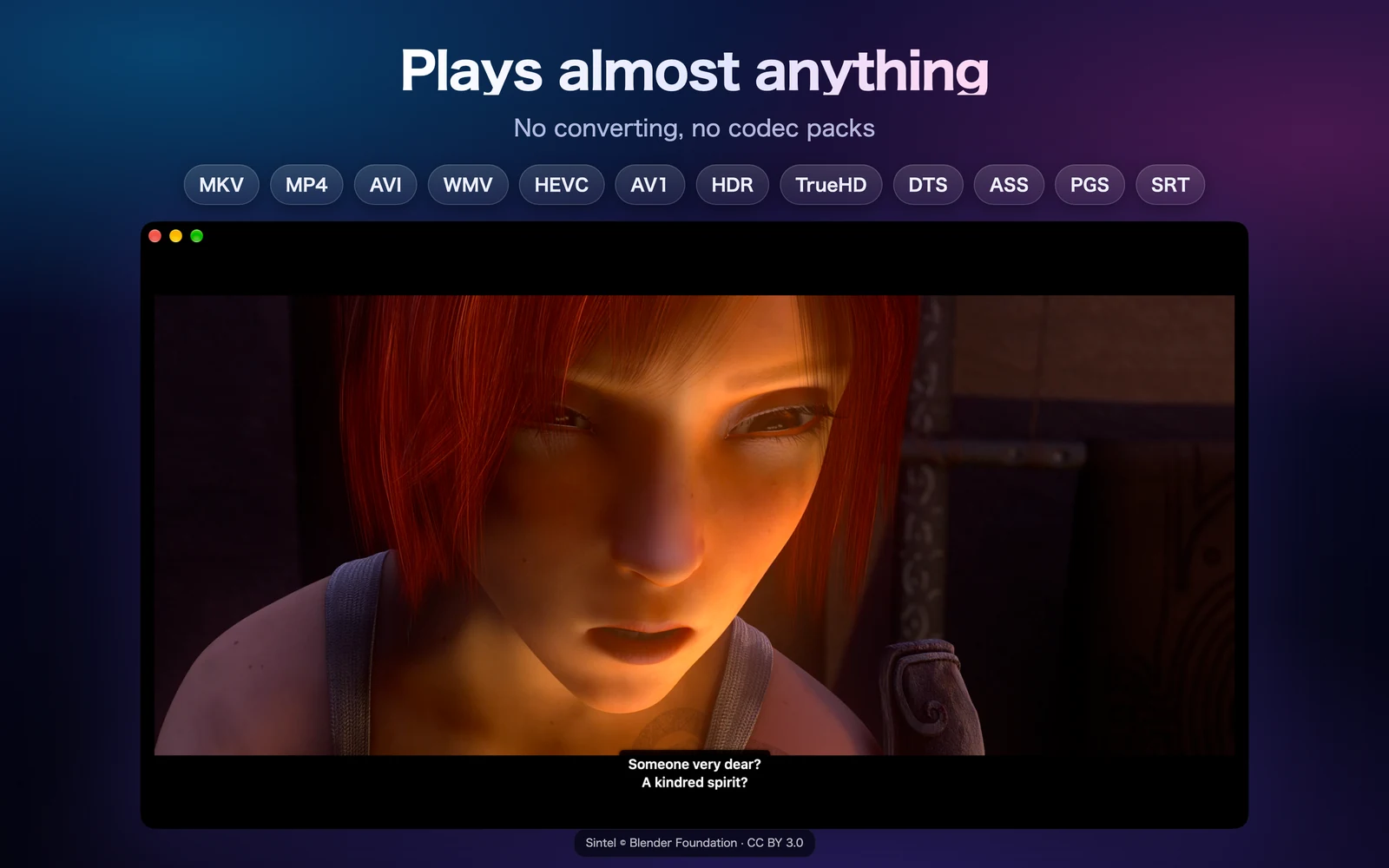
Let the player open the video, then check picture, sound, and any subtitles. If the video opens with the wrong language, choose a different track using the menus below.
Choose an audio or subtitle track
With a file open, use Playback → Audio Track to choose among the audio tracks found in the file. Use Playback → Subtitle Track to select embedded subtitles or switch them off. The player also has audio-track and subtitle controls.
A track menu can only offer tracks that the file actually contains. If your preferred language is absent, changing the menu cannot create it; load a separate subtitle file instead. For a soundtrack that exists but produces no sound, try another audio track to narrow down the problem.
Load a separate subtitle file
Keep the video open
External subtitles attach to the current media, so open the MKV first.
Choose Load Subtitles
Select File → Load Subtitles…, or press ⇧⌘S. Choose your subtitle file, such as an SRT, ASS, SSA, or VTT file.
Select the loaded track
Check the subtitle menu for the loaded subtitle and choose it if needed. Use a subtitle made for the same cut of the video; a different edit can drift out of time even when the language and title match.
Vunio also has online subtitle search. The support FAQ explains file matching, subtitle languages, and when a provider needs your own API token.
If the MKV will not play as expected
The file will not open
Check that the download or copy is complete and the file is readable. Try a second local video in Vunio. If only one file fails, keep its error message and the container and codec information for support. Renaming a file from .mkv to .mp4 does not convert its contents.
There is a picture but no sound
Check the Mac's volume and selected sound output, then try a different entry under Playback → Audio Track. Note whether the problem affects one track, one file, or every file.
There is sound but the picture is missing
Try a different local video. If that works, report the failing file's video codec and the message Vunio shows. A supported container does not guarantee every track inside it can be decoded.
Subtitles are missing or in the wrong language
Check Playback → Subtitle Track and make sure the selection is not Off. If the language is not available, load a separate subtitle file. If it appears at the wrong moment, check that it belongs to the same version of the film.
What if the MKV is on a NAS or WebDAV server?
Connect the server in Vunio and browse to the file. You do not have to copy it into Media Library before browsing and playing it. Follow the SMB guide for host, share, and account settings, including the Mac entry point, or the WebDAV guide for an HTTP or HTTPS endpoint.
If the server file stutters while a local copy plays, investigate the connection as well as the file. The player still needs the network to deliver the video while it plays; adding a remote folder as a library source does not remove that requirement.